
5.9 KiB
This is an example of advanced Ayano features.
First, there are insert blocks. These can load some code from specified python script, and insert it at the start:
not_pi = e
Note that their displayed version at the end actually includes the loaded script. These blocks can be used for display too:
from math import pi
f"e = {e}, pi = {pi}, pi != {not_pi}"
Sometimes you wish to only include part of the script, and do something else after some point. To achieve that, you can include # TOSHINO KYOKO! comment (note the space and casing; you can append anything after it at that line). Once this comment is seen by Ayano, it stops inserting the file, and appends the actual code you've provided in the block (possibly none). Comment itself is not included:
# you'll see this comment, and the 2
x
Ayano blocks can actually interact with the filesystem themselves. The caveat is - where exactly python thinks it's current directory is. Well, the rule of thumb turns out to be quite simple:
- if there is an insertion declared for a block, it's execution will be in the directory that file is in
- if there is no insertion declared, python will continue it's execution at
kyomato's process directory
two = None
with open("../2", "r") as f:
    two = int(f.readline())
two + three
Ayano can be used to insert csv tables (possibly generated at runtime too). Here's a special syntax for it:
@csv_table: src="../data/20240327230336_8798.csv", caption="cred: [randat](http://randat.com/)", ident = "random_table1"
This can be combined with insertion blocks to achieve generated table insertion; for csv-table syntax, please always specify path relative to the inserted script folder:
@csv_table: src="calculations_table.csv"
... but you've not forced to do that; you may do execution-relative path too:
@csv_table: src="../data/calculations_table.csv"
An of course, once data was already generated (it happened twice here, twice, in fact), you can insert it without any script:
@csv_table: src="../data/calculations_table.csv"
You can also restrict the columns and rows you want, for example:
@csv_table: src="../data/calculations_table.csv", rows = 3..4, columns = ["name"], caption = "That's a-bit-cut table!"
There's also a special columns syntax to display some columns in value-error format:
@csv_table: src="../data/calculations_table.csv", columns = ["name", ("value", "err"), "%"], caption = "That's a table with value-error formatting!"
That's pretty much it, regarding tables.
Ayano also allows you to include dynamically-generated figures. You can go two ways about that:
1st way
Generate a figure in a static block, and save it somewhere. After that, include it as an image:
import numpy as np
import matplotlib.pyplot as plt
from math import pi
x = np.arange(-pi, pi, 0.01)
y = np.sin(x)
plt.plot(x, y)
plt.savefig("sine_graph.png")
!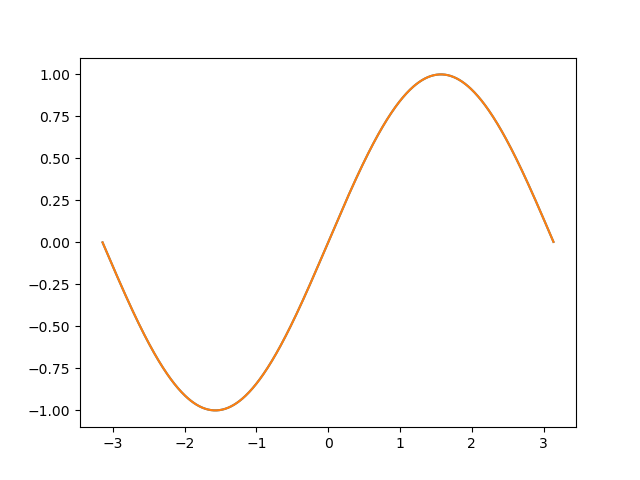 {caption = "that's a nice little sine graph!", ref = sine}
2nd way (more idiomatic, in my opinion)
Generate a figure in function block, and insert it with a special syntax:
import numpy as np
import matplotlib.pyplot as plt
from math import pi
x = np.arange(-pi, pi, 0.01)
y = np.sin(x)
plt.plot(x, y)
plt.savefig("sine_graph.png")
@fig: src = "sine_graph.png", ident = "other_sine_graph", caption = "That's another way to include a figure from Ayano!", width = 0.9
The only real upside I can see here - you can generate-and-include figures with prior-unknown names or locations
Oh, and you also can specify width of the figure this way, if it matters to you, that is
And of course you can generate a figure with inserted block too!
@fig: src = "other_sine_graph.png", ident = "yet_another_sine_graph", caption = "The same sine. Again.", width = 0.2
Note, that in the last example, script actually saves sine into a folder near input markdown fine, and yet Kyomato will be able to find it (if configured properly, that is)
Note that essentially all of the paths used to identify files, are specified with quotes. That's because it can actually be dynamic, and determined at runtime!
fig_path=  'other_sine_graph.png'
@fig: src = fig_path, ident = "yet_another_sine_graph", caption = "The same sine. Again.", width = 0.2
tab_path = '../data/calculations_table.csv'
@csv_table: src=tab_path
Note, of course, that this removes Kyomato's file validity checking and other path processing. So if you happen to resort to that, make sure that Python is able to find the file by themselves, from the directory it executes in.
! {ref= nomi, caption = "We've actually completed Nomi some time ago, lol", width= 0.5}